# Connexion à l'environnement technique Linux

#### 1. Connexion / Raccordement au(x) serveur(s)

Les connexions à l'environnement Open-Prod s’effectuent au travers du protocole "<span style="background: rgb(255, 255, 255);">ssh"</span>. C'est un protocole permettant une connexion au(x) serveur(s) Ubuntu via une liaison sécurisée afin de pouvoir lancer les commandes nécessaires à la mise à jour / maintenance de l'environnement.

Il convient de détenir :

- L’adresse IP ou le nom de votre serveur,
- <span style="text-indent: -18pt;">Le code utilisateur ayant réalisé l’installation d’Open-Prod sur le serveur,</span>
- <span style="text-indent: -18pt;">Le mot de passe du dit utilisateur.</span>

<span style="font-size: 11.0pt; line-height: 107%; font-family: 'Calibri',sans-serif; mso-ascii-theme-font: minor-latin; mso-fareast-font-family: Calibri; mso-fareast-theme-font: minor-latin; mso-hansi-theme-font: minor-latin; mso-bidi-font-family: 'Times New Roman'; mso-bidi-theme-font: minor-bidi; mso-ansi-language: FR; mso-fareast-language: EN-US; mso-bidi-language: AR-SA;">Le poste à partir duquel la mise à jour sera réalisée devra être doté d’un client ssh, par exemple, Putty. L</span><span style="font-size: 11.0pt; line-height: 107%; font-family: 'Calibri',sans-serif; mso-ascii-theme-font: minor-latin; mso-fareast-font-family: Calibri; mso-fareast-theme-font: minor-latin; mso-hansi-theme-font: minor-latin; mso-bidi-font-family: 'Times New Roman'; mso-bidi-theme-font: minor-bidi; mso-ansi-language: FR; mso-fareast-language: EN-US; mso-bidi-language: AR-SA;">e poste devra également pouvoir joindre le serveur concerné sur le port 22. </span>

<p class="callout warning">**<span style="font-size: 11.0pt; line-height: 107%; font-family: 'Calibri',sans-serif; mso-ascii-theme-font: minor-latin; mso-fareast-font-family: Calibri; mso-fareast-theme-font: minor-latin; mso-hansi-theme-font: minor-latin; mso-bidi-font-family: 'Times New Roman'; mso-bidi-theme-font: minor-bidi; mso-ansi-language: FR; mso-fareast-language: EN-US; mso-bidi-language: AR-SA;">Merci de vous rapprocher de votre administrateur pour vérifier si votre poste est équipé d’un tel outil et si le serveur est joignable à partir de ce dernier.</span>**</p>

#### 2. Mise en œuvre de Putty

<span style="font-size: 11.0pt; line-height: 107%; font-family: 'Calibri',sans-serif; mso-ascii-theme-font: minor-latin; mso-fareast-font-family: Calibri; mso-fareast-theme-font: minor-latin; mso-hansi-theme-font: minor-latin; mso-bidi-font-family: 'Times New Roman'; mso-bidi-theme-font: minor-bidi; mso-ansi-language: FR; mso-fareast-language: EN-US; mso-bidi-language: AR-SA;">Putty est téléchargeable à partir de l'url suivante :</span>

<span style="font-size: 11.0pt; line-height: 107%; font-family: 'Calibri',sans-serif; mso-ascii-theme-font: minor-latin; mso-fareast-font-family: Calibri; mso-fareast-theme-font: minor-latin; mso-hansi-theme-font: minor-latin; mso-bidi-font-family: 'Times New Roman'; mso-bidi-theme-font: minor-bidi; mso-ansi-language: FR; mso-fareast-language: EN-US; mso-bidi-language: AR-SA;">[https://www.putty.org/](https://www.putty.org/)</span>

<span style="font-size: 11.0pt; line-height: 107%; font-family: 'Calibri',sans-serif; mso-ascii-theme-font: minor-latin; mso-fareast-font-family: Calibri; mso-fareast-theme-font: minor-latin; mso-hansi-theme-font: minor-latin; mso-bidi-font-family: 'Times New Roman'; mso-bidi-theme-font: minor-bidi; mso-ansi-language: FR; mso-fareast-language: EN-US; mso-bidi-language: AR-SA;">Télécharger et suivre les étapes d'installation de Putty, puis l'exécuter une fois cela fait. </span>

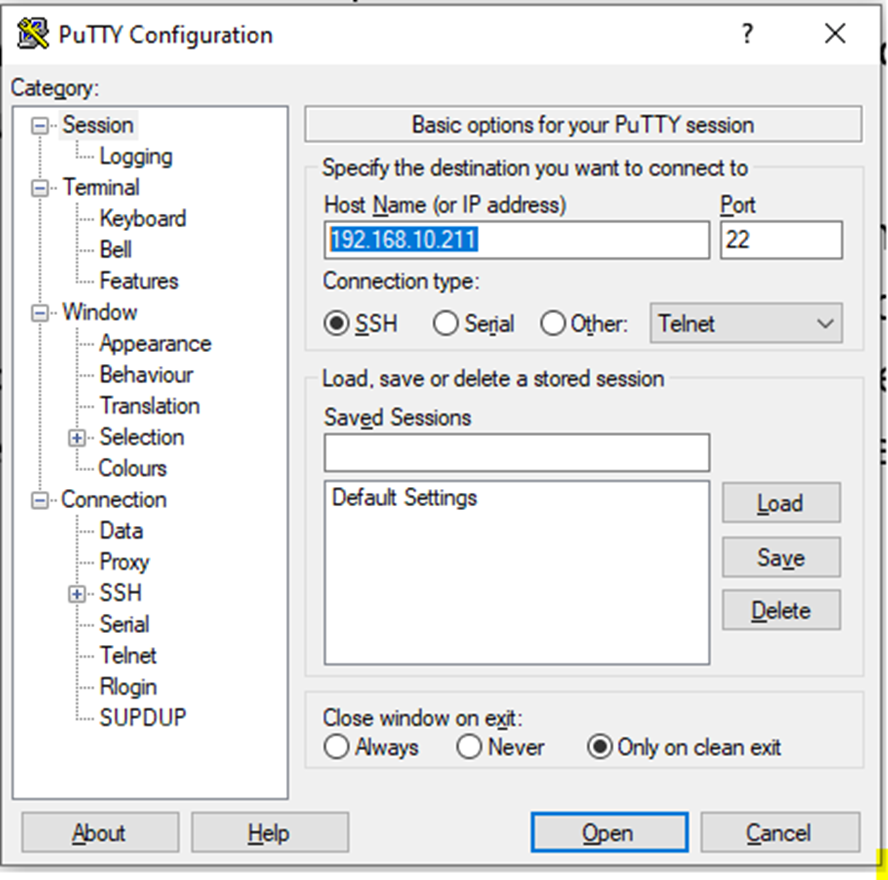
<span style="font-size: 11.0pt; line-height: 107%; font-family: 'Calibri',sans-serif; mso-ascii-theme-font: minor-latin; mso-fareast-font-family: Calibri; mso-fareast-theme-font: minor-latin; mso-hansi-theme-font: minor-latin; mso-bidi-font-family: 'Times New Roman'; mso-bidi-theme-font: minor-bidi; mso-ansi-language: FR; mso-fareast-language: EN-US; mso-bidi-language: AR-SA;">Saisir l’adresse IP du serveur à mettre à jour, puis cliquer sur « Open »</span>

![](https://docs.myfab.fr/uploads/images/gallery/2022-11/embedded-image-cqbb3jxc.png)

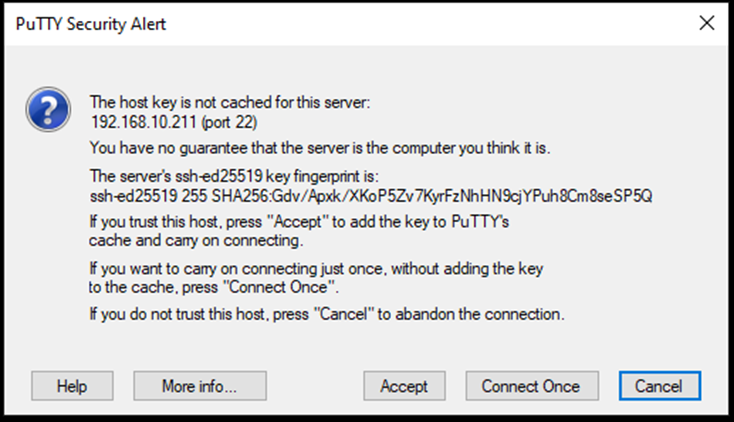
<span style="font-size: 11.0pt; line-height: 107%; font-family: 'Calibri',sans-serif; mso-ascii-theme-font: minor-latin; mso-fareast-font-family: Calibri; mso-fareast-theme-font: minor-latin; mso-hansi-theme-font: minor-latin; mso-bidi-font-family: 'Times New Roman'; mso-bidi-theme-font: minor-bidi; mso-ansi-language: FR; mso-fareast-language: EN-US; mso-bidi-language: AR-SA;">Votre pc peut afficher un message tel que celui ci-dessous lors de votre 1<sup>ère</sup> connexion sur le serveur. Cliquer sur « Accept ».</span>

![](https://docs.myfab.fr/uploads/images/gallery/2022-11/embedded-image-galubjp5.png)

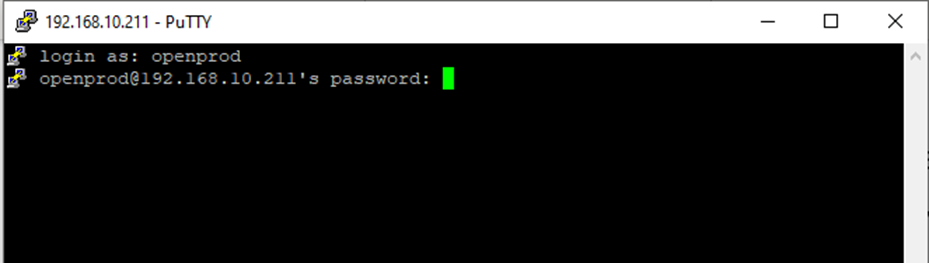
Enfin saisir le code utilisateur et le mot de passe lorsqu’ils vous seront demandés.
![](https://docs.myfab.fr/uploads/images/gallery/2022-11/embedded-image-zp7h6hwx.png)

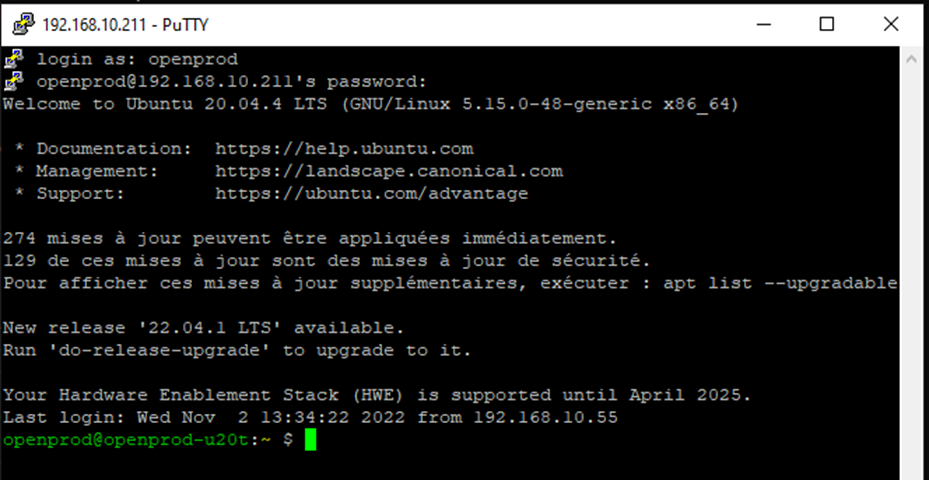
Si les identifiants de l’utilisateur sont corrects, l’écran ci-dessous doit s’afficher :
![](https://docs.myfab.fr/uploads/images/gallery/2022-11/embedded-image-vgvlk6gf.png)

Le poste est à présent connecté en « ligne de commande » sur le serveur Ubuntu. L’utilisateur peut dorénavant taper les commandes d’administration.

#### 3. Lecture des lignes de commandes

Une ligne est affichée à l’ouverture du terminal : avant le symbole $, diverses informations importantes en vert, et après le $, un curseur permettant la saisie de commandes.

Les informations en vert se lisent ainsi :

- <span style="background-color: #bfedd2;">**openprod** </span>: nom de l’utilisateur actuellement connecté au terminal.
- <span style="background-color: #bfedd2;">**openprodmf** </span>: nom de la machine sur laquelle est ouvert le terminal.
- **<span style="background-color: #bfedd2;">~</span>** : emplacement actuel de la navigation du terminal dans l’arborescence de fichiers. Le symbole tilde ~ représente la Home de l’utilisateur courant (équivalent du C:/Users/utilisateur sur Windows).